How to Configure IntelliJ IDEA For Angular JS Testing
Contents
If you’re using IntelliJ IDEA and writing Angular tests using Karma/Jasmine, IDEA can make this a very pleasant experience:
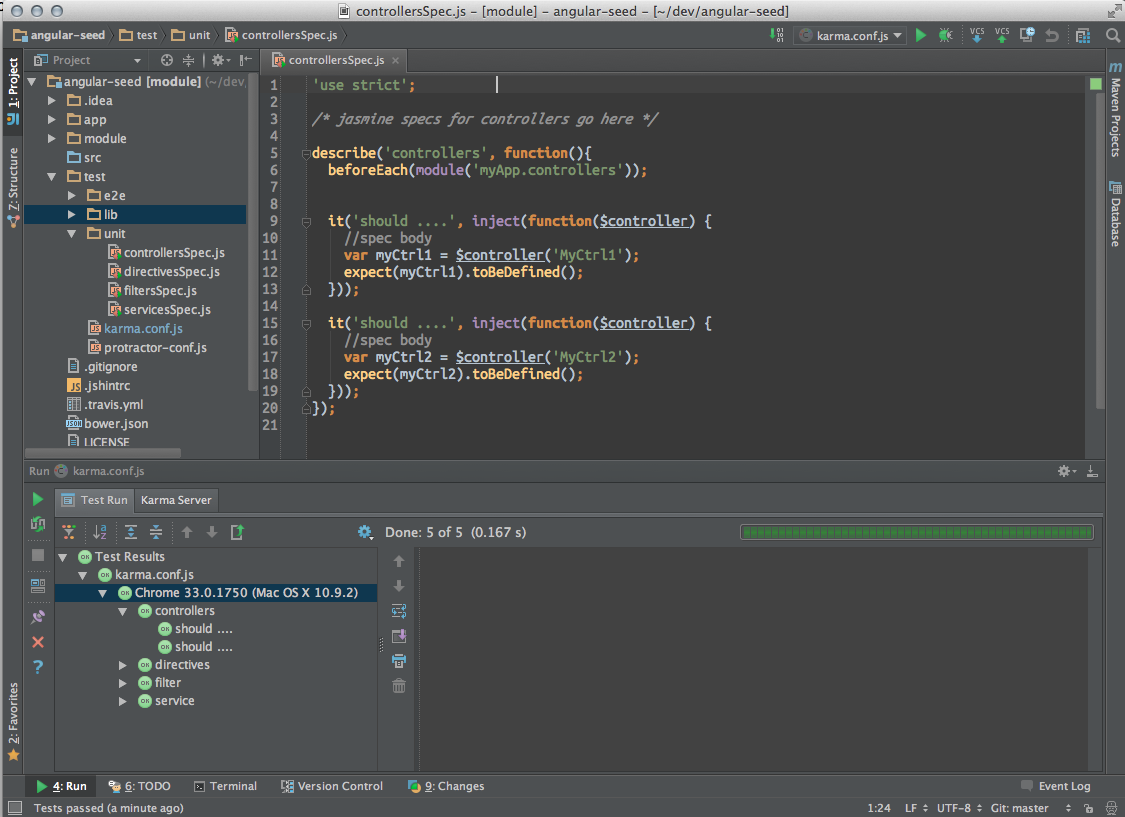
Note the fact that IDEA is aware of Jasmine syntax and uses the built-in test runner to run Karma tests. Here’s a quick summary of how to do it.
1. Install Karma
At the command line, type the following (assumes you’ve already installed node/npm):
npm install -g karma
2. Install Karma plugin
Go to Settings > Plugins > Browse Repositories > search for “karma”:
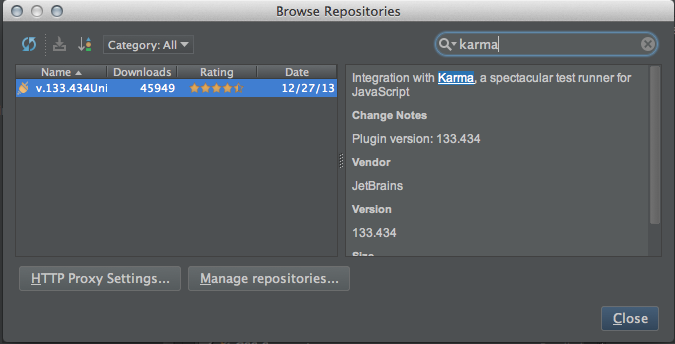
Note that this requires IDEA 13.
3. Configure Karma Run Configuration
Go to Run > Edit Configurations, add new configuration of type Karma:
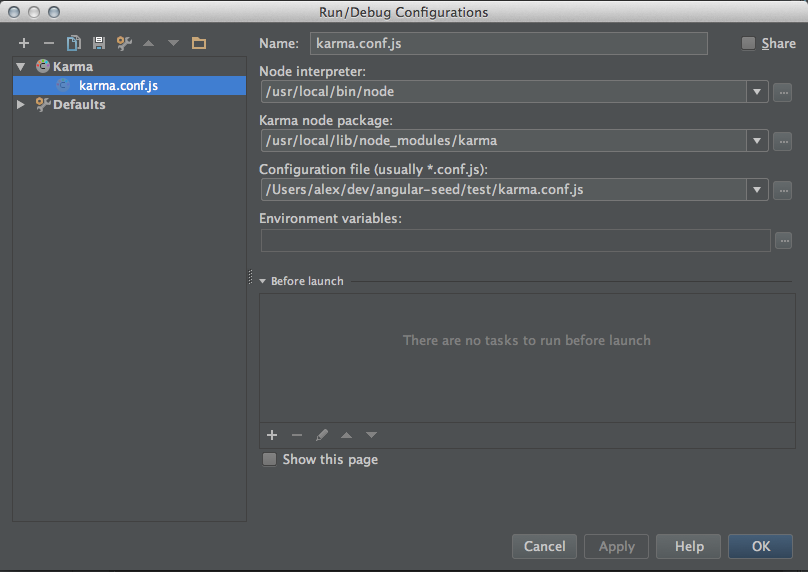
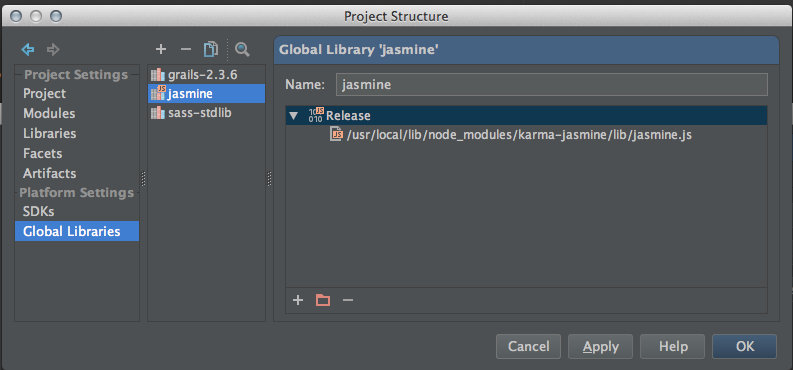
4. Configure Jasmine
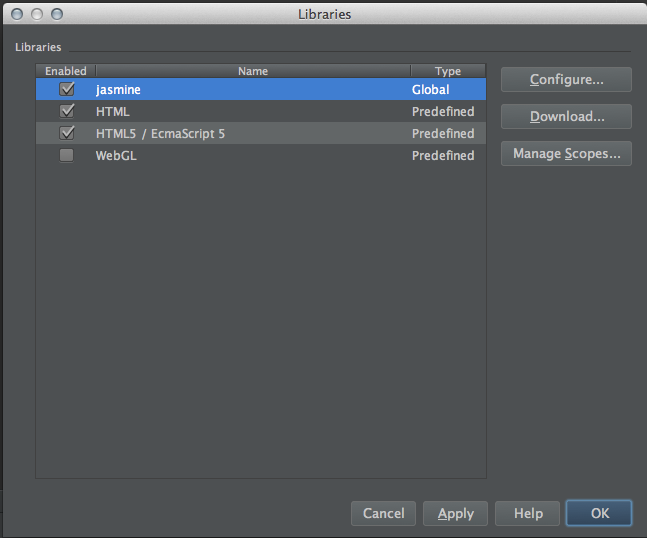
Go to Settings > JavaScript > Libraries, add a new Global Library. Then, navigate to wherever npm installs its modules (probably /usr/local/lib/) and select the jasmine.js file from node_modules/karma-jasmine/lib/jasmine.js:
5. Enable Jasmine library for your project
Click on the “Hector” icon (a little guy in a bowler hat at the bottom right of the screen) and click “Configure Inspections”:
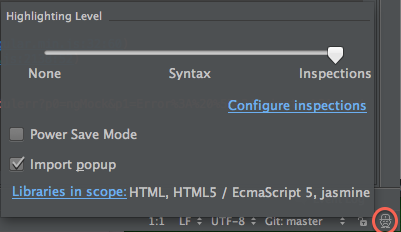
Select jasmine library click OK: